Scan at the till
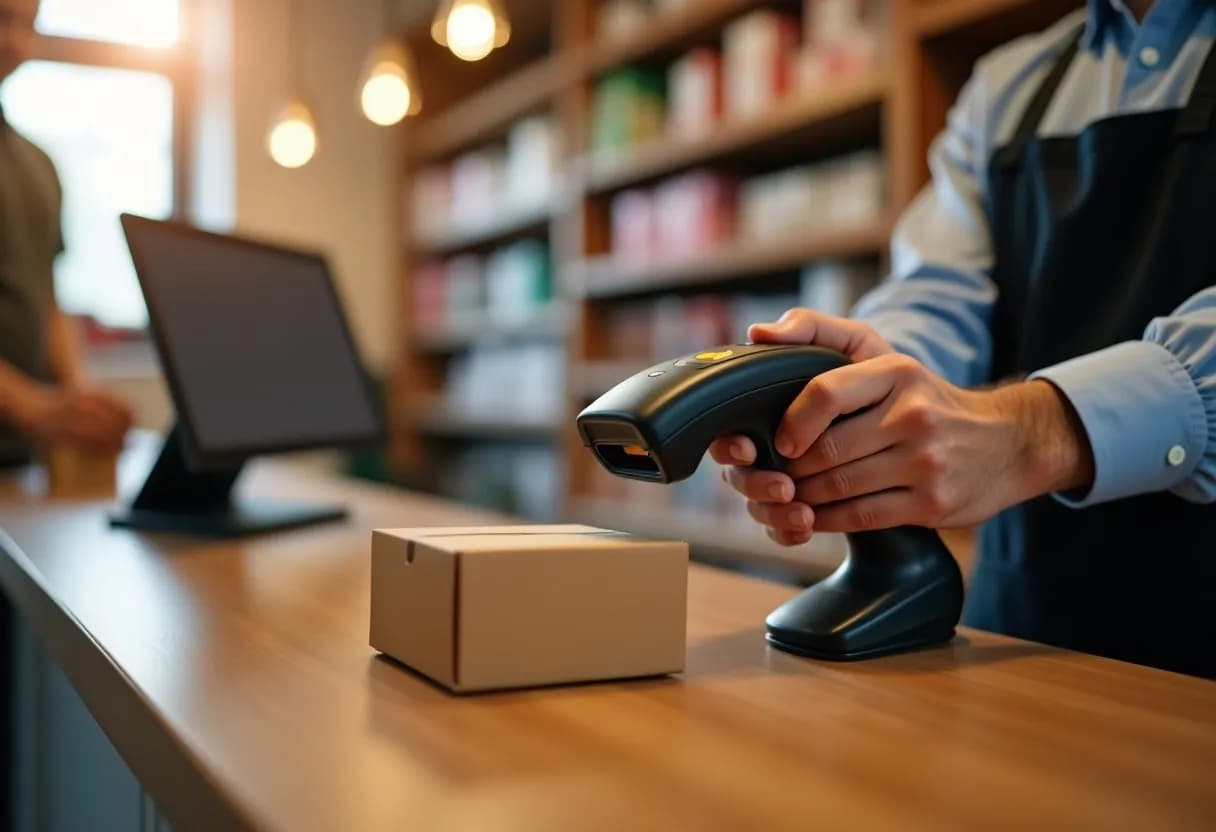
Scan a product and it goes on the bill at the catalogue price. Scan it again to add one more.
Scan a barcode and the product is found. At the till, the item goes on the bill. Use the camera on your phone, or a scanner that types like a keyboard. This page says what works today and what is still being built.
These are built and ready to use in your business now.
Scan a product and it goes on the bill at the catalogue price. Scan it again to add one more.
Scan a code to find the product. If nobody uses that code yet, register a new product with the code already filled in.
Use the rear camera of a phone or laptop. The torch is there too, on phones that have one.
Works with USB and Bluetooth scanners that type like a keyboard and end each code with Enter or Tab.
EAN-13, EAN-8, UPC-A and ITF-14 are checked for a valid check digit. Other codes are kept exactly. KinMol never replaces the maker’s barcode.
A product with no barcode can get a KinMol code (Code 128, starting KM-) when someone asks. It is an in-shop code, not a GS1 or EAN number.
Scan a crate and it counts as 12 pieces. Sell by piece, pack or carton.
One code belongs to one thing in your business. A duplicate is refused, and the message names the product that already has it. You can retire a code with a reason.
One count for the counter and the online shop, kept by branch, with transfers between branches.
Print a kitchen order ticket (KOT) for restaurant orders.
Barcode and price labels on A4 sticker sheets from the browser, or on a thermal label printer through the KinMol print bridge, plus shelf and bin labels.
A till screen with cashier shifts: opening float, close and count the cash, and over or short recorded.
Step-by-step setup for scanners, receipt printers, label printers and cash drawers, with a test scan or test print.
Bills for 58 mm and 80 mm receipt printers.
The counter accepts an online, QR or delivery app order and it goes to the kitchen tablet or printer set up for that section, such as drinks to the bar.
Scan, receive, move and count stock from a phone.
Shelf and bin locations, receiving against a purchase order with putaway, and stock counts by scanning with approval.
What to reorder, which stock is getting old, what moves slowly and what is close to expiry.
Nepal standard (like the printed bill book), computerised, modern A4, compact thermal or minimal, with your logo and your name in Nepali. Prints, PDFs and emails all match.
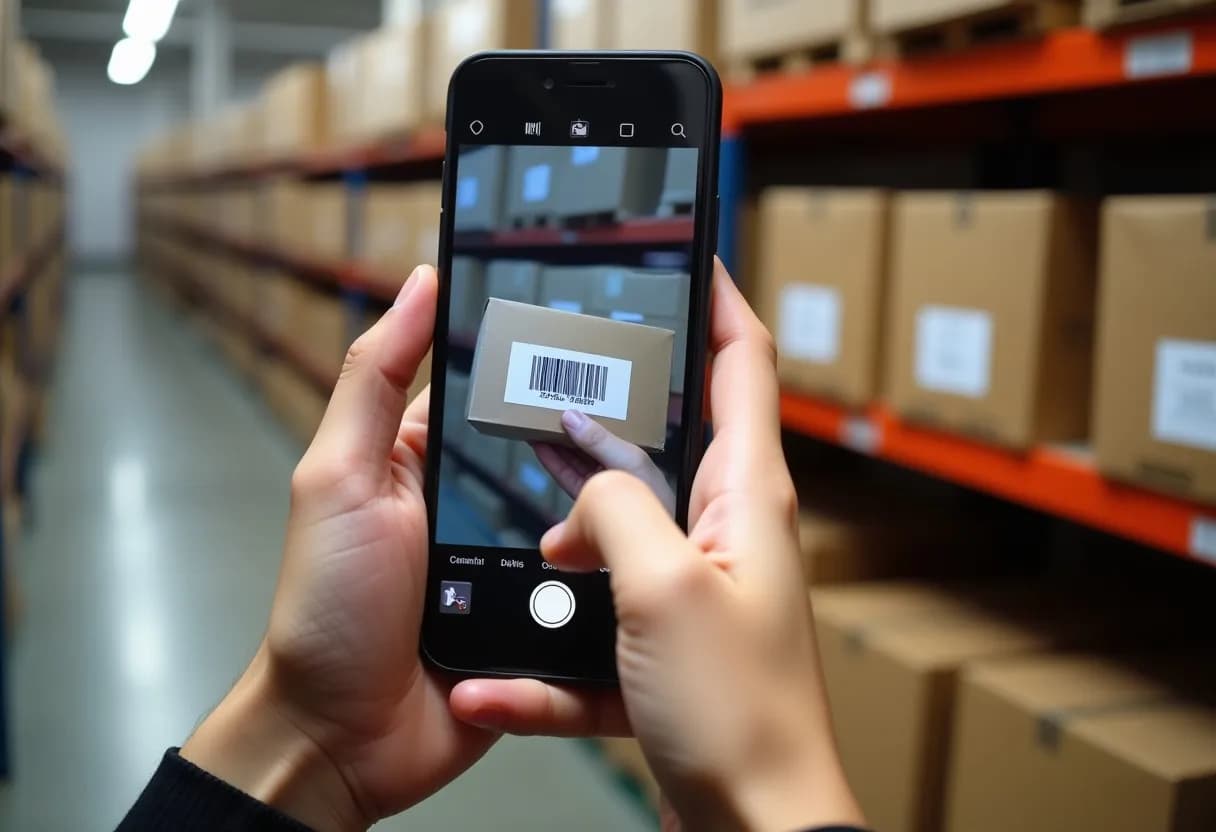
Not sure how to set up a scanner? The barcode scanner setup guide takes you through it step by step.
None of this is available yet. We list it here so you know what is on the way, and so you do not plan around it today.
Numbered tax invoices with VAT split out, switched on once IRD approves KinMol's e-Billing software. Until then every sale prints a numbered payment receipt.
For the full list of what is live, see what’s live today.