Help
Barcode scanner setup
You can scan with your phone or laptop camera, or with a USB or Bluetooth scanner that types like a keyboard. Follow the steps below. Most scanners need only steps 1 and 2.
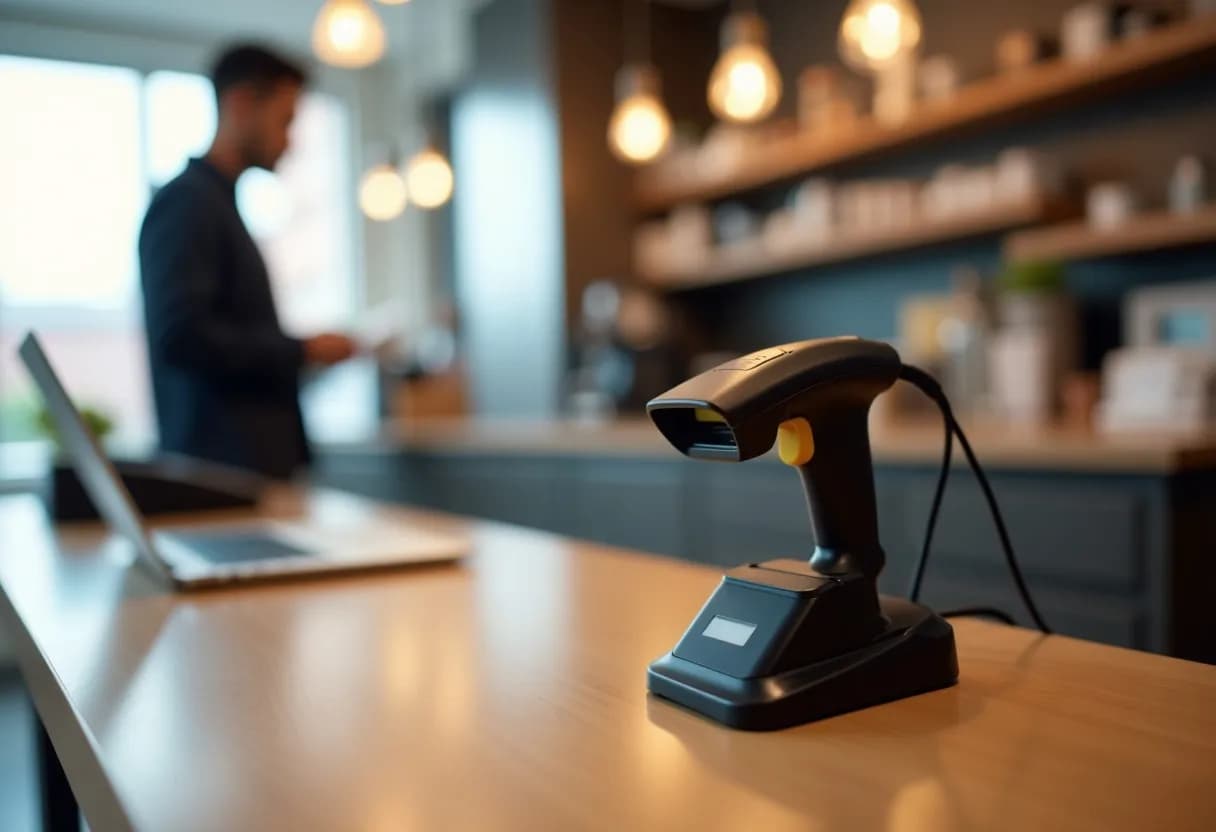
Step 1: Plug in or pair the scanner
Plug a USB scanner into your computer, or pair a Bluetooth scanner the way you pair any keyboard.
The scanner must act as a keyboard (HID). Most do by default. KinMol works with scanners that type like a keyboard.
Step 2: Make it send Enter after each code
Set the scanner to send Enter (or Tab) after every code. The scanner’s manual has a setup barcode for this. Scan that barcode once.
KinMol uses the Enter or Tab to know the code is complete.
Step 3: Scan on the Barcodes page
Open Barcodes in KinMol, click the scan field, and scan a product.
The code appears and KinMol finds the product. If nobody uses that code yet, KinMol offers to register a new product with the code already filled in.
Step 4: Or use the camera
Tap Use the camera and allow camera access when the browser asks. KinMol uses the rear camera on a phone.
Hold the code 10 to 20 cm from the camera. In a dim shop, turn on the torch, if your phone has one.
Step 5: Scan at the till
Scan a product and it goes on the bill at the catalogue price. Scan it again to add one more.
A pack barcode counts the whole pack. Scanning a crate can add 12 pieces at once.
Step 6: Products without a barcode
Open the product page and choose Generate a KinMol code. It starts with KM- and is printed as Code 128.
This is an in-shop code. It is not an EAN or GS1 number. Do not use it for goods you sell to other shops.
KinMol only makes a code when someone asks. It never replaces the maker’s barcode.
If something goes wrong
- Nothing happens when I scan.
- Click the scan field first, so the cursor is in it. A scanner types into whatever is selected.
- The code appears but nothing is searched.
- The scanner is not sending Enter. Set the Enter (or Tab) suffix, as in step 2.
- The wrong characters appear.
- Set the scanner’s keyboard language to US English, then scan again.
- The camera will not open.
- Camera access may be blocked. Allow it for kinmol.com in your browser’s site settings, then reload the page.
- A code starts with zeros.
- That is correct. KinMol keeps every code exactly as scanned, including leading zeros.
- KinMol says the code is already used.
- One code belongs to one thing in your business. The message names the product that has it. Retire the code there, with a reason, if it was a mistake.
Printing labels
Print barcode and price labels on A4 sticker sheets from the browser, or on a thermal label printer through the KinMol print bridge. Many labels can be printed at once, from the web or the app.
See everything that works with barcodes and devices on the POS, barcodes and devices page.